

Submit iOS Apps with Live Activities.
Here are my thought:
Live Activities are interactive notifications that provide up-to-date information, enabling end-users to stay informed of real-time events directly from the Lock Screen. This feature offers a truly immersive experience that can enhance the user's overall engagement with their mobile device. Although this technology is currently exclusive to iOS, it has the potential to become a standard feature across multiple devices in the near future.
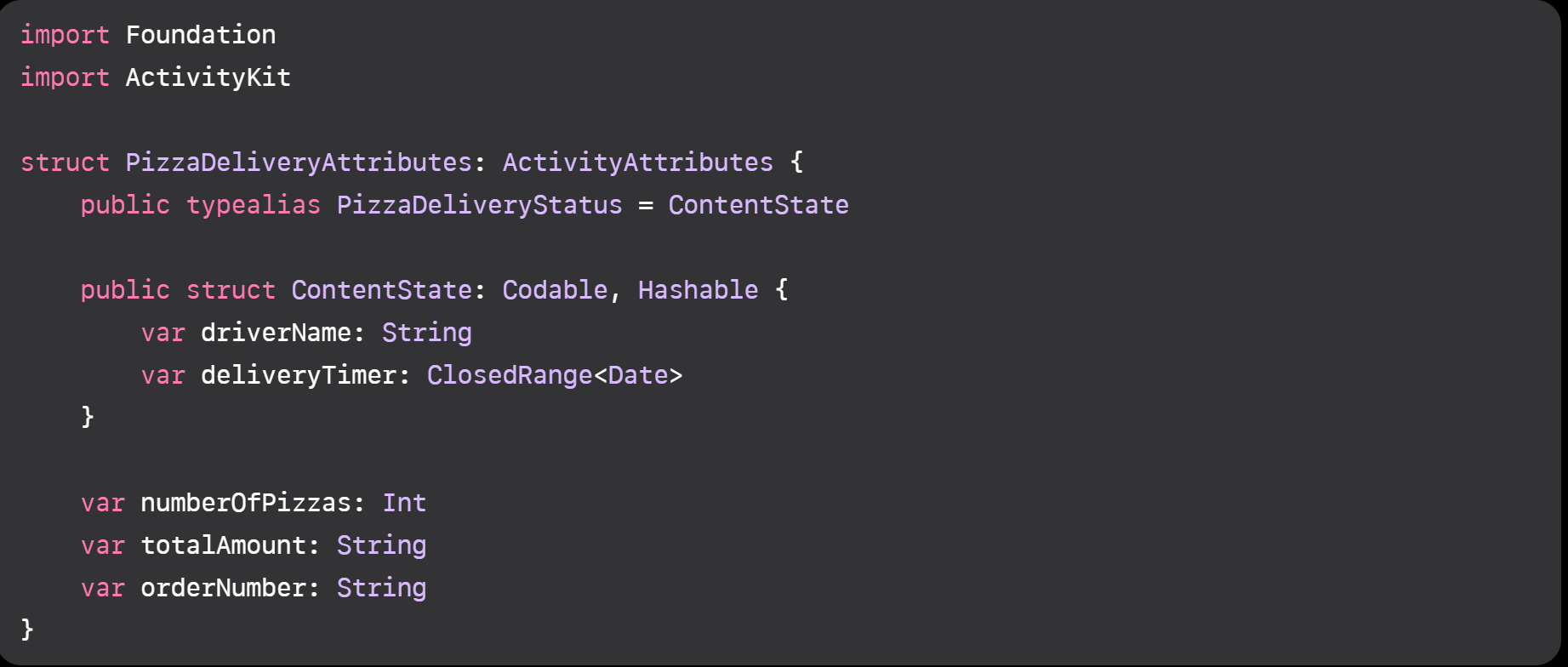
It is worth noting that a Live Activity can remain active for up to eight hours, after which the system automatically terminates it. Nonetheless, it can still appear on the Lock Screen for an additional four hours, making the maximum duration of a Live Activity twelve hours. To create a configuration object for your Live Activity, it is necessary to first implement Activity Attributes to define the static data displayed in the notification. In addition, Activity Attributes can also declare the required custom Activity. Content State type that encapsulates dynamic data. The example code below demonstrates how to define a custom Activity. Content State, namely Pizza Delivery Status, which includes dynamic data such as the name of the pizza delivery driver and the estimated delivery time. This approach utilizes machine learning's pattern matching capabilities to distinguish between process parameters and determine which will more likely result in a material with desired properties.
Overall, Live Activities provide an exciting new opportunity for developers to create engaging and informative experiences for end-users. As technology continues to evolve, we can expect to see more innovations in this space that leverage machine learning and other advanced technologies.
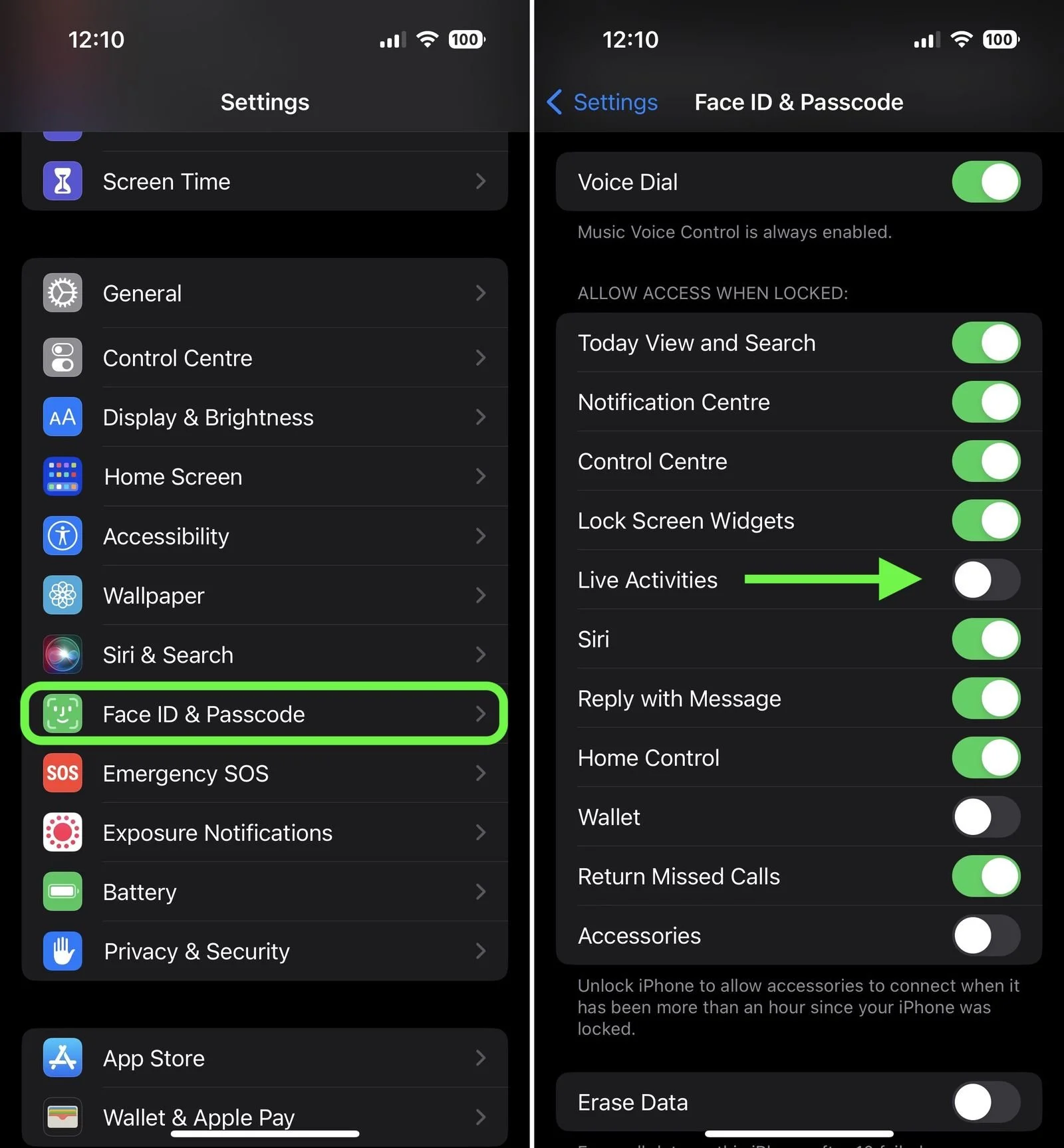
You can enable Live Activities for the Lock Screen on an iPhone running iOS 16.1 or later by following these steps:
Launch the Settings app.
Scroll down and tap Face ID & Passcode.
Enter your passcode to continue.
Scroll down and under "Allow Access When Locked," toggle the switch next to Live Activities to the green ON position.
You can find the full article about this here: https://tinyurl.com/t4x2vyc6